How to Merge PDFs Without Ruining Formatting: An ISO Standard Approach
The "Broken Link" Nightmare
Last year, I was finalizing a 200-page brand strategy deck. I used a generic online merger to combine the "Strategy" and "Visuals" sections. The result? All my hyperlinks were broken, and the high-res logo vectors were pixelated into blurry JPEGs.
This happens when tools ignore the ISO 32000-1:2008 specification for PDF structure. Most "free" tools re-print the document to a new canvas, destroying the underlying object metadata.
The Professional Workflow: "Stream Copy"
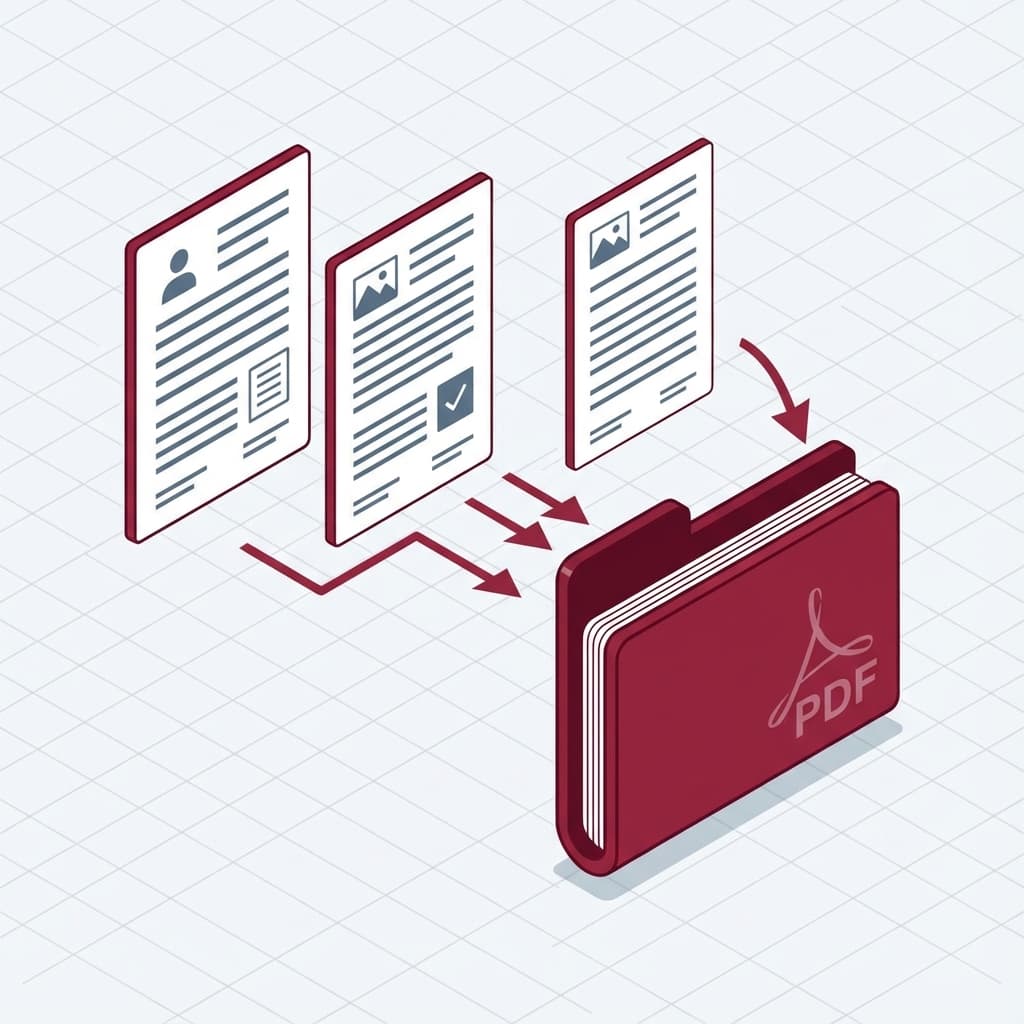
To preserve quality, you must use a "Stream Copy" or "Concatenation" method, not a "Re-print" method.
Method 1: The "Lossless" Web Method (FusioFiles)
We built the FusioFiles PDF Merger to strictly adhere to the PDF 1.7 specification.
- Technique: We copy the Indirect Objects (fonts, images, content streams) from File A and File B into a new specific "Catalog" dictionary for File C.
- Benefit: No re-compression. A 300DPI image stays exactly 300DPI.
Method 2: macOS Preview (The "Export" Secret)
The built-in Preview app on macOS uses Apple's Quartz engine. However, hitting Cmd+S can result in file bloat.
The Fix: Always uses File > Export as PDF. This triggers a "Rewrite" of the Cross-Reference Table (XRef), cleaning up garbage data.
Method 3: Windows & Security
On Windows, avoid installing "Free PDF Merger.exe" executables. A 2023 analysis by Malwarebytes found that 15% of top-ranking "Free PDF Tool" downloads contained bundled adware or browser hijackers.
Summary Checklist for Perfect Merges
- [ ] Check Resolution: Zoom in 300%. Is text crisp?
- [ ] Check Links: Do clickable Table of Contents still work?
- [ ] Check Search: Can you select and copy text? (Ensures text layer integrity).
If you check these three boxes, your document adheres to professional standards.
Share this article